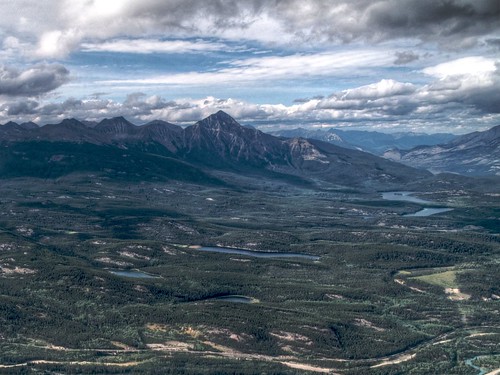
I have been traveling around Canada for the past two weeks, and I decided to give a shot to Aperture on the road.
Disclaimer: I am a beginner in photography, don't assume the suggested workflow is the best in any way!
I decided not to bring my main laptop for the trip, I use it for work and I didn't want to risk damaging it. I brought a first generation Macbook instead, with just Aperture and a couple of plugins installed.
General workflow
After shooting during the day (everything in Raw), I loaded the masters in Aperture, geotagged them, star-rated them, did some HDR rendering with the Photomatix Pro plugin, and backed everithing up on an external HD. The Aperture library being stored in my Dropbox, an offsite backup was happening in the background, whenever I had Internet connectivity.
Having the masters on at least two different disks, I felt comfortable erasing the memory card before a new day of shooting.
I have to say that Aperture performs very well as a traveling photo management tool. The backups are extremely easy using the built-in Vaults, and bringing the work done on the road into the main library is also easy and fast.
The editing, using Aperture and a couple of plugins, is extremely easy and quite fast, even on an old machine. The plugins I installed are: Photomatix Pro (HDR tone mapping), Noise Ninja (noise reduction), and Maperture Pro (geotagging). For heavier duties I also installed Photoshop Elements, but I only used it to stitch panoramas.
Geocoding
While shooting I had my GPS tracker running, so I could easily geotag the photos at the end of the day. I use a Qstarz BT-Q1300, which looks like a simple key-chain, and provides 11 hours of autonomy. For the geo-tagging, I have been using Maperture Pro for some batches of pictures, and HoudahGeo for others: I haven't made up my mind yet on what method is the best.
Maperture Pro
- Pros: Better interface, integrated in Aperture, easy manual correction of geocoding errors;
- Cons: Doesn’t work at all without an Internet connection, very slow and resource-consuming while processing big GPX files, requires an external application to extract GPS data from the tracker (i.e. HoudahGPS, freeware), GPS tags are not exported by Aperture (to be fair this is an Aperture limitation);
HoudahGeo
- Pros: Doesn’t require an Internet connection (except for the reverse geocoding), fast even with big GPX files, can extract data directly from GPS devices, allows to apply an offset to the photos' time-stamp, doesn’t require Aperture at all;
- Cons: Not integrated into Aperture, difficult to manually correct the coordinates, interface not very intuitive.
Back Home
Once back home, Aperture makes it extremely easy to export a project, including raw masters, versions, meta-data, and all the work done on the road. The project can then be imported equally easily in the main library. You can see some shots on my Flickr Photostream. To upload the photos on Flickr, I used a plugin called FlickrExport.
I wanted to give a try to Lightroom as well, but I haven't. The biggest problem with this type of programs is that they lock you in very effectively: the idea of migrating the work done is quite daunting. Probably there is no need to do that, and the best is to keep the shots where they have been processed initially, but for now I'm happy with Aperture.